
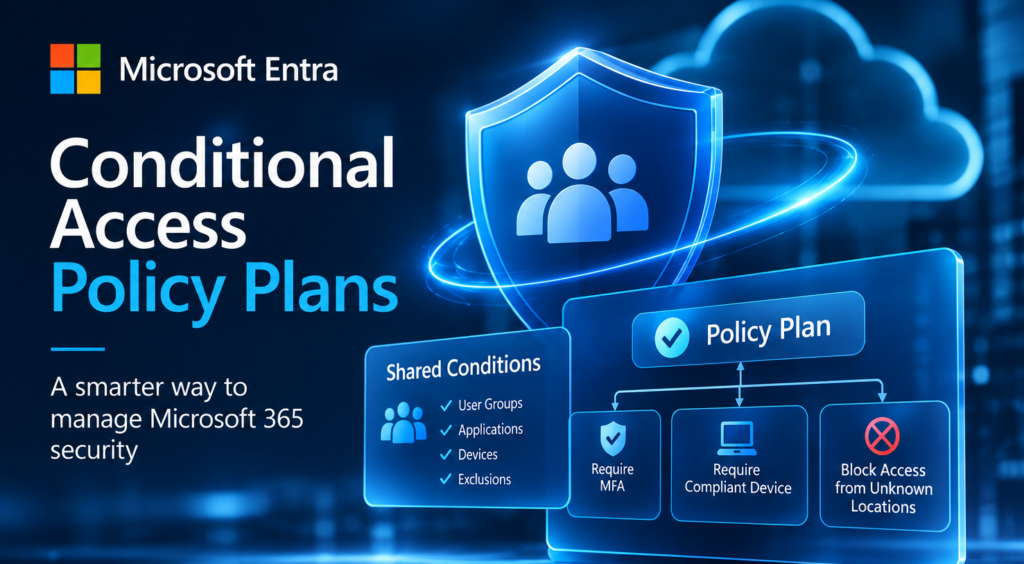
Executive Summary: Microsoft has launched Conditional Access Policy Plans (Public Preview as of Oct 2026), a new feature in Microsoft Entra ID designed to simplify the organization’s security policies. Policy Plans let administrators group related Conditional Access rules under a shared set of conditions. This means common settings (like user groups, applications, or emergency access exclusions) can be defined once and applied across multiple rules. The result is less duplication, more consistent security controls, and easier management. Importantly, Policy Plans do not replace existing Conditional Access policies – they coexist side by side. Organizations can use a built‑in migration tool to consolidate related policies into a plan, but must test thoroughly (in report-only mode) before enforcing changes.
Microsoft touts Policy Plans as a way to reduce the “policy sprawl” that occurs when many policies share the same targeting or exclusions. For example, if several platform‑specific policies all exclude the same break-glass accounts, a Plan can define those exclusions once at the plan level so no rule is ever missing them. As one Microsoft explanation notes, “shared targeting is defined once and automatically applies to every scenario within that plan”. This additive model means each rule within the plan inherits the plan’s conditions (and can add more exclusions of its own).
Figure 1: Creating a Conditional Access Policy Plan in the Microsoft Entra admin center (Source: Microsoft Entra ID interface, via office365itpros.com). In this example, shared conditions (identities, resources, etc.) are defined at the plan level, and individual rules inherit those settings.
What Are Conditional Access Policy Plans?
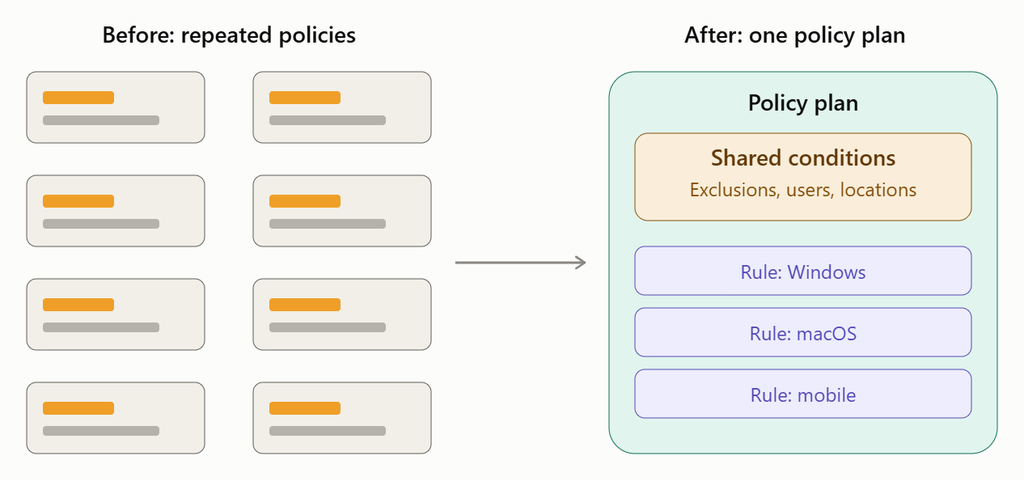
Conditional Access policies control who can access company resources under what conditions (e.g. requiring MFA, compliant devices, blocking risky sign-ins). Policy Plans are a new container for multiple related Conditional Access rules. Each plan consists of:
- Plan details: Name, description, owners and tags (for organization and accountability).
- Shared conditions: Common assignments/exclusions (user groups, apps, platforms, locations, break-glass accounts, etc.) defined once at the plan level.
- Rules: Individual rules (formerly separate policies) that specify scenario‑specific settings (grant controls, session controls, additional exclusions).
All rules in a plan automatically inherit the shared conditions. For example, if the plan’s shared target is “All Employees” and excludes two break-glass admin groups, every rule must also target “All Employees” and include those exclusions. A rule can add more exclusions or refine conditions (like requiring a higher MFA strength), but it cannot override the plan’s base targeting or exclusions. This ensures consistency: no rule can accidentally omit the exclusions or broad targeting defined at the plan level.
Policy Plans still use the same enforcement engine as standalone policies. At sign-in time, the system evaluates each rule (within a plan) just like a normal policy. There is no priority or override: both existing policies and plan rules are evaluated independently, and every applicable policy and rule must allow access. In other words, Policy Plans change how you organize policies, not how access decisions are made.
Key Differences: Existing Policies vs Policy Plans
| Aspect | Existing CA Policies | Policy Plans (Preview) |
|---|---|---|
| Scope | Each policy is a standalone rule with its own targets. | A plan groups multiple rules around a common goal or user population. Shared scope is defined once at the plan level. |
| Shared settings | No inherent sharing – admins duplicate settings (targets, exclusions) in each policy. | Shared conditions (users, apps, platforms, break-glass accounts, etc.) are defined once and inherited by all rules in the plan. |
| Rule inheritance | N/A – each policy stands alone. | Plan’s shared conditions apply to every rule. Rules cannot narrow plan scope but can add exclusions or additional conditions. |
| Migration path | Policies created/edited individually. | A built-in migration tool can analyze selected existing policies, suggest shared conditions, and propose rules in a new plan. |
| Best use cases | Simple or one-off access controls. | Complex or overlapping scenarios (e.g. multiple policies targeting same users/apps with different requirements), break-glass exclusions, or any situation where policies share common settings. |
Table: Comparison of existing Conditional Access policies vs. Policy Plans (based on Microsoft documentation).
Migration and Checklist
Migration Options: Organizations can continue using existing policies unchanged. To adopt Policy Plans, Microsoft provides a “Migrate to Conditional Access Policy plans (Preview)” experience in the Entra admin center. The tool lets you select a group of related policies (e.g. all policies protecting the same application or user group) and analyses them to identify shared conditions. It then presents a proposed plan: shared conditions become the plan’s assignments/exclusions, and each original policy becomes a separate rule. Importantly, the original policies are not modified during this process – they stay in place (On or Off) so you can safely review the plan before using it.
Step-by-Step Migration Checklist:
- Identify candidate policies: Look for policies with overlapping scope (same users/apps or similar conditions). For example, group all policies that protect “Mobile Devices” or “High-Risk Users.”
- Run the migration tool: In the Entra admin center, go to Conditional Access > Policies and select Migrate to Policy plans (Preview). Choose the policies to consolidate and click “Merge policies into a plan.”
- Review the proposed plan: Examine the generated plan’s shared conditions and individual rules. Ensure that shared assignments (users, apps, break-glass exclusions) match expectations, and that each rule corresponds to one of the original policies.
- Enable rules in report-only mode: By default, new rules start Off. Edit each rule to set it to Report-only. This allows you to test without blocking any access.
- Monitor sign-in logs: Let the plan run in report-only mode, then use Conditional Access insights and Sign-in logs to compare results. Confirm that the new rules match the existing policies’ behavior (the logs should show the same users/app conditions being targeted).
- Enable enforcement and decommission old policies: Once validated, set each plan rule to On. Then, one by one, disable the original policies and verify that access is still correct. When confident, delete the obsolete policies following your organization’s change-management procedures.
mermaidCopyflowchart LR
    A([Start Migration]) --> B[Identify related CA policies]
    B --> C[Open Entra admin center and run migration tool]
    C --> D[Review proposed plan (shared conditions & rules)]
    D --> E[Enable each rule in Report-only mode]
    E --> F[Monitor sign-in logs and policy impact metrics]
    F --> G[Enable plan rules (set to On)]
    G --> H[Disable original policies]
    H --> I([End Migration])
Flowchart: Migration process for consolidating existing Conditional Access policies into a policy plan.
Adoption & Testing Strategy
Policy Plans are in Public Preview (as of Oct 2026). As with any preview feature, caution and thorough testing are essential:
- Pilot groups: Start with a small, well-understood set of policies (e.g. a non-critical department or simple scenario) to trial the approach. Avoid first rolling out to highly privileged accounts or critical infrastructure.
- Report-only testing: Always enable new plan rules in Report-only mode first. This generates logs and impact reports without blocking access. Use the Conditional Access insights workbook or the “What If” tool to validate behavior.
- Review logs: Monitor the Azure AD Sign-in logs for the selected policies. Ensure that the plan’s rules capture the same sign-ins as the original policies did. Look out for any unexpected denials or missing triggers.
- Incremental rollout: Migrate one cluster of policies at a time. Don’t attempt to convert your entire Conditional Access configuration in one go. This reduces risk and makes it easier to troubleshoot if issues arise.
- Involve stakeholders: Communicate changes to help desk, security, and impacted users. Use alerting (e.g. email on policy misconfiguration) during the pilot to catch any anomalies.
Microsoft’s guidance emphasizes that after migration, both the original policies and the new plan rules will be evaluated. Access is only granted if all applicable rules (old and new) are satisfied. Therefore, keep the original policies active (or at least in report-only) until you are certain the plan provides equivalent coverage. Only then disable the old policies.
Business Impact and Benefits
Adopting Conditional Access Policy Plans can deliver several business advantages:
- Reduced administrative overhead: Shared conditions mean you only configure common settings once. For example, adding a new break-glass account or updating a user group only needs to be done at the plan level, automatically applying to all rules.
- Consistency and compliance: Ensuring critical exclusions (like emergency access accounts) are uniformly applied is much easier. The risk of “forgotten exclusions” is minimized because a plan-level exclusion cannot be overridden by a rule.
- Better organization: Plans are tagged and documented, making it clearer which rules serve a common security objective (e.g. “All Employees MFA Requirements”). This improves visibility for auditors and team members.
- Scalable complexity: For large environments (especially those deploying Global Secure Access or managing AI agents), Policy Plans provide a structured way to handle complex, repeating scenarios. Each new scenario can be added as a rule in an existing plan, rather than as a separate policy.
- Align with Zero Trust: By grouping policies logically, teams can more easily align their Conditional Access structure with business units or trust boundaries (e.g. one plan per department or application category).
Together, these benefits can lead to stronger security with less chance of misconfiguration – an important factor for business owners and CISOs.
Limitations, Risks, and Preview Considerations
Because Policy Plans are in Preview, there are important limitations to note:
- Preview restrictions: During preview, plan-level targeting can’t be narrowed by individual rules (a rule cannot target a subset of the plan’s assigned users). Also, an exclusion set at the plan level (e.g. a break-glass group) can never be removed by a rule. Mixing identity types (users vs agents) at the plan level is not supported, so you may need separate plans.
- Known issues: Microsoft warns that policy plans using Location conditions will issue one-hour tokens without real-time IP enforcement during preview. Be cautious with any rule relying on Named Locations.
- No immediate replacement: Policy Plans do not change the fundamental security – they only change management. Existing policies remain active and evaluated. Misconfiguring a plan could result in more restrictive behavior, since a user must satisfy all applicable rules. Always validate carefully.
- Evolving feature: As a preview, features, UI, or limitations may change before General Availability. For example, Microsoft Graph/PowerShell support for plans may be in development. Organizations should stay updated on documentation and Tech Community announcements.
In summary, Policy Plans offer a promising new way to organize Conditional Access, but they are best adopted incrementally. The first waves of adopters will likely be technical teams or security practice leaders who can afford to pilot new previews. For business owners, the key takeaway is that this feature aims to simplify operations and reduce errors in enforcing corporate access policies.
SEO Metadata and Featured Image Concept
- SEO Title: Microsoft Conditional Access Policy Plans – Simplifying Identity Security
- Slug:
microsoft-conditional-access-policy-plans - Meta Description: Discover Microsoft Entra’s new Conditional Access Policy Plans (Preview) and learn how grouping related policies can reduce administrative overhead, improve consistency, and strengthen your Microsoft 365 security.
- Focus Keywords: Conditional Access Policy Plans, Microsoft Entra, Microsoft 365 security, Conditional Access migration, policy management
- Category: Cybersecurity Insights (or “Identity and Access Management”)
- Tags: Microsoft 365, Microsoft Entra ID, Conditional Access, MFA, Zero Trust, Identity Security, Cloud Security
Featured image concept: A modern, abstract representation of identity and access control – for example, a digital shield or login icon overlaying cloud symbols, with dark Spherium-blue (#081F44) background and light blue/cyan highlights. The design should evoke security and organized structure (e.g. linked nodes or a dashboard UI), without heavy text.
Actionable Migration Checklist:
- Identify a small set of related policies (e.g. same apps or user groups) to consolidate.
- Use the Entra admin center Migration tool to merge them into a new policy plan.
- Review and edit the proposed plan: set shared conditions, rule names, and set rules to Report-only.
- Monitor sign-in logs to verify each plan rule matches the old policy behavior.
- Once validated, switch plan rules to On and disable the original policies (after confirming no access disruptions).
Thank you for your attention, the Spherium team.